How to Set Up Text Expansion on Android
A practical guide to replacing repeated typing with reusable snippets while keeping your usual Android keyboard.
Most people have a few blocks of text they type over and over: addresses, email replies, meeting links, shipping notes, canned support answers, or the same two-paragraph explanation for a client.
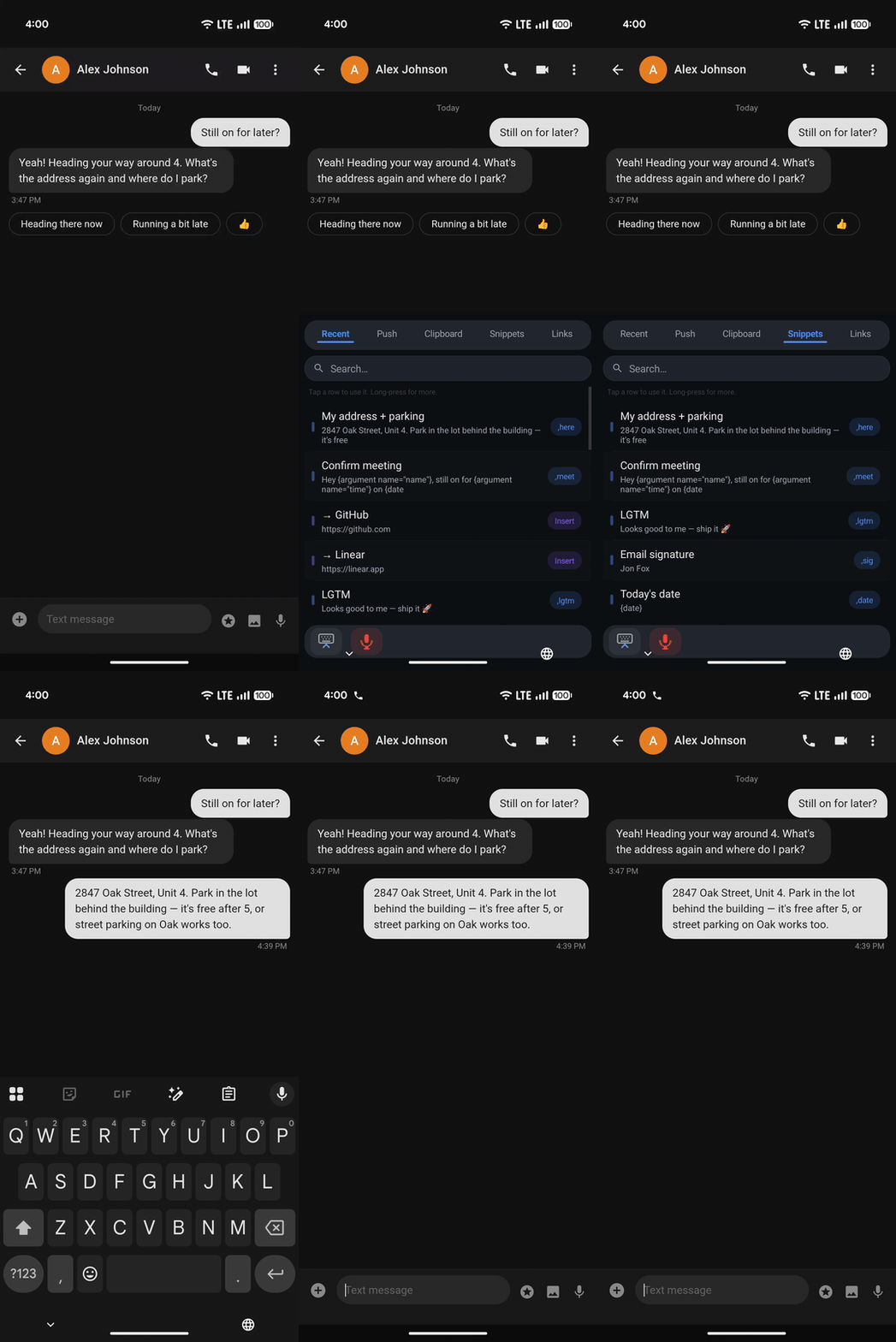
Nibit turns that repeated typing into snippets you can trigger or find from its secondary keyboard. Keep Gboard, SwiftKey, or your usual keyboard for everyday typing, then switch to Nibit when you need a saved piece of text.
What is a text snippet?
A snippet is reusable text with a short trigger. You type the trigger, Nibit expands the full text, and you keep writing.
For example:
| Trigger | Expansion |
|---|---|
,addr | Your full mailing address |
,sig | Your mobile email signature |
,intro | A reusable intro paragraph |
Set up a few useful snippets first
Start with text you type several times a week. Give each one a concise trigger you can remember. Nibit suggests a comma prefix because it keeps triggers visually distinct from ordinary words. ,addr, ,sig, and ,sched are easy to spot and less likely to collide with normal typing.
For snippets you use constantly, type the trigger. When you do not remember it, switch to Nibit and search your snippet library by the trigger or its expanded text.
Good snippets to create first
Start with text you already type several times a week:
- your address
- your email signature
- a scheduling link
- standard support replies
- common client updates
- personal details that are annoying to type on a phone
Keep snippets short and memorable
Use triggers you can remember without thinking. A good trigger is short, unique, and not something you type accidentally.
We often suggest starting triggers with a comma because it is easy to type on a standard Android keyboard and avoids collisions with real words. This is just a convention, not a requirement.
Examples:
,addrfor address,sigfor signature,schedfor scheduling link,shipfor shipping instructions
Add dynamic placeholders later
Once basic snippets feel natural, placeholders let one snippet adapt to the moment. Start with a plain snippet, then add a placeholder when one detail genuinely changes from use to use.
For the full setup path, read the Nibit snippet documentation and the guide to dynamic placeholders.