Gboard Text Shortcuts: A Better Way to Reuse Snippets on Android
Keep Gboard for everyday typing and use Nibit to expand, search, and reuse text snippets on Android.
Gboard text shortcuts are useful when you have a few things to type again and again. An address, a sign-off, a scheduling link, or a standard reply can all be reduced to a short trigger.
The catch is remembering the trigger when you need it. As your collection grows, a short list of shortcuts becomes a small library to manage.
Nibit gives that library a second home on Android. Keep Gboard for ordinary typing, then use Nibit when you want to expand a known trigger or search for a snippet you cannot remember.
Start with the text you already repeat
Good shortcuts are specific enough that you will not type them by accident and short enough to remember. A punctuation prefix is a practical convention, not a requirement.
| Trigger | Expansion |
|---|---|
,addr | Your full mailing address |
,sig | Your email signature |
,sched | Your scheduling link and a short invitation |
,reply | A reply you send regularly |
The best first snippets are usually the ones that make you pause because you have typed the same words too many times already.
Use Gboard, then let Nibit expand a trigger
Nibit is a secondary keyboard for Android. It works alongside Gboard or SwiftKey instead of trying to replace either one.
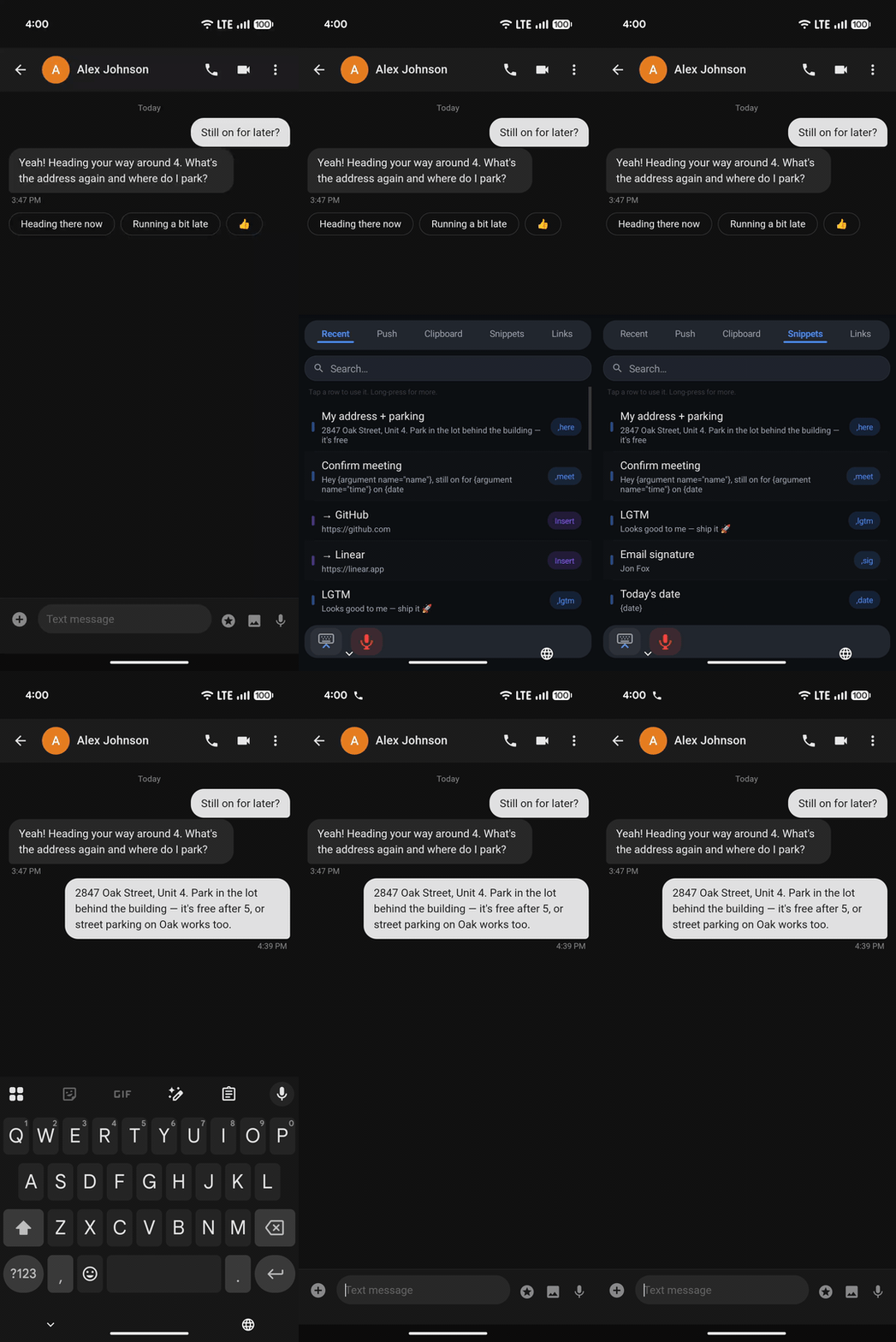
For snippets you know by heart, you can keep typing with Gboard. Create a trigger and its expansion in Nibit, then type that trigger in a text field and press space or return. Nibit can detect the trigger and replace it with the full snippet in place.
Automatic trigger expansion needs Android Accessibility access. During setup, Android asks you to enable Nibit's accessibility service. That service is what lets Nibit notice a configured trigger as you type and insert its expansion. See the Nibit installation guide for the setup steps.
When you do not remember the shortcut
Triggers are fast when you know them. They are less helpful when you are looking for a reply you created months ago or when you have several versions of the same message.
In those moments, switch to the Nibit keyboard. You can browse your snippets or search by trigger and expansion text, then tap the one you want to insert. This also gives you a direct input path in apps where automatic accessibility insertion is unreliable.
| If you know the trigger | If you need to look it up |
|---|---|
| Type it with Gboard, then press space or return | Switch to Nibit, search or browse, then tap to insert |
| Best for daily snippets | Best for a growing library or less common replies |
Both paths use the same snippet library. The only difference is whether you recall the shortcut before you need the text.
A simple setup that stays useful
- Install Nibit and enable it as a secondary keyboard.
- Turn on Accessibility access if you want automatic trigger expansion.
- Add three snippets you use every week.
- Give each one a trigger that is easy to recognize, such as
,addror,sig. - Keep using Gboard for regular typing. Use a trigger when you remember it, or switch to Nibit to find the right snippet.
If a trigger does not expand, check that Accessibility access is enabled, then type the trigger followed by space or return. Nibit expands on that boundary, not while you are still typing the trigger. The snippet guide covers the two insertion paths in more detail.
Build a shortcut library without changing how you type
The point is not to memorize every line you have ever written. It is to keep the useful ones close enough to reuse. Gboard stays the keyboard you know, while Nibit gives repeated text a searchable place to live.
Start with a signature, an address, and one reply you send often. After that, add snippets whenever you notice a sentence that deserves to be typed once instead of ten times.