How to Import Raycast, Texpand, or Typing Hero Snippets Into Nibit
Bring your text snippet library to Android without retyping everything. Import from Raycast, Texpand, or Typing Hero in a couple of taps.
You already built a killer snippet library on your computer. Now you want it on your phone, without burning an afternoon retyping every trigger and expansion.
Here's the gist: Nibit imports your existing snippets from Raycast, Texpand, and Typing Hero. Export the file from whatever tool you're using, drop it into Nibit, and boom, your whole library carries over with triggers and placeholders intact.
What gets imported
Nibit auto-detects your file format and converts placeholders that actually work on Android.
| App | File format | What carries over |
|---|---|---|
| Raycast | JSON | Snippets and Quick Links with dynamic placeholders |
| Texpand | ZIP backup | Snippets with date/time, clipboard, and fill-in variables |
| Typing Hero | CSV export | Snippets with cursor, clipboard, nested snippets, and date/time |
Desktop-only variables (Tasker variables, local file paths, contact lookups) stick around as plain text with a warning so you can decide what to keep or trash.
Import from Raycast
Export your Raycast snippets as JSON. In Raycast, hit Export Snippets and save the file. If you use Quick Links too, run Export Quicklinks, each one becomes its own JSON file.
Install Nibit from Google Play and finish setup. Your regular keyboard stays the default. Nibit works alongside it.
Open Nibit, go to Settings → Backup & data → Import → From file, and pick your Raycast JSON. Or use the web companion at Settings → Import if you're managing your library from a browser.
Nibit watches for custom trigger prefixes like @ or !. If it spots one, you'll get asked whether to swap it for Nibit's suggested , prefix (easier to hit on a standard Android keyboard). You can keep your old prefix, though, or pick whatever character you want.
What converts automatically:
- Most Raycast placeholders pass through unchanged, they already match Nibit's
{argument name="..."}syntax. - Plain
{argument}tags become{argument name="argument"}for consistency. - Quick Links grab web URLs. Local paths like
~/Downloadsget skipped since Nibit Quick Links are URL based. - The
{browser-tab}placeholder drops off because Android doesn't use it.
Import done? Your snippets work exactly like before. Type the trigger, hit space or return, and Nibit expands it.
Import from Texpand
Export a backup from Texpand by going to Settings → Backup & Restore → Create backup. Save the .zip file somewhere you can find it again.
Install Nibit, open it, and go to Settings → Backup & data → Import → From file. Pick your Texpand backup.
What converts automatically:
| Texpand variable | Nibit placeholder |
|---|---|
%d, %D (date/time components) | {date format="..."} / {time format="..."} |
%clipboard% | {clipboard} |
%textinput{label}% | {argument name="label"} |
What doesn't convert:
Tasker variables like %TASK_VAR stick around as literal text with a warning flagged during import. If your snippets lean on Tasker, you'll need to fix those manually after importing.
Import from Typing Hero
Export your Typing Hero library as CSV: go to Settings → Backup → Export as CSV in the app and save the file.
Open Nibit, go to Settings → Backup & data → Import → From file, and select the CSV.
What converts automatically:
| Typing Hero variable | Nibit placeholder |
|---|---|
%cursor% | {cursor} |
%clipboard_paste% | {clipboard} |
%textinput:label% | {argument name="label"} |
%snippet:name% | {snippet name="name"} |
%EEEE%, %MMMM%, etc. (date/time) | {date format="..."} / {time format="..."} |
%futuredate:n:UNIT:%fmt%% | {date format="..." offset="..."} |
%futuretime:n:UNIT:%fmt%% | {time format="..." offset="..."} |
What doesn't convert:
Contact variables (%contact:*%), date ranges (%daterange:*%), and send/navigate actions (%send_and_navigate_back%, %send_in_messaging_app%) get preserved as literal text with a warning. Android just doesn't handle those patterns the same way Typing Hero does on desktop.
Import a Nibit backup
Already have a Nibit backup file (.json)? Drop it into the import card on the web companion or select it from Settings → Backup & data → Import → From file on Android.
Nibit backups restore everything: snippets, Quick Links, and transforms. On the web, duplicates get flagged before import so you can review what's coming in.
After importing
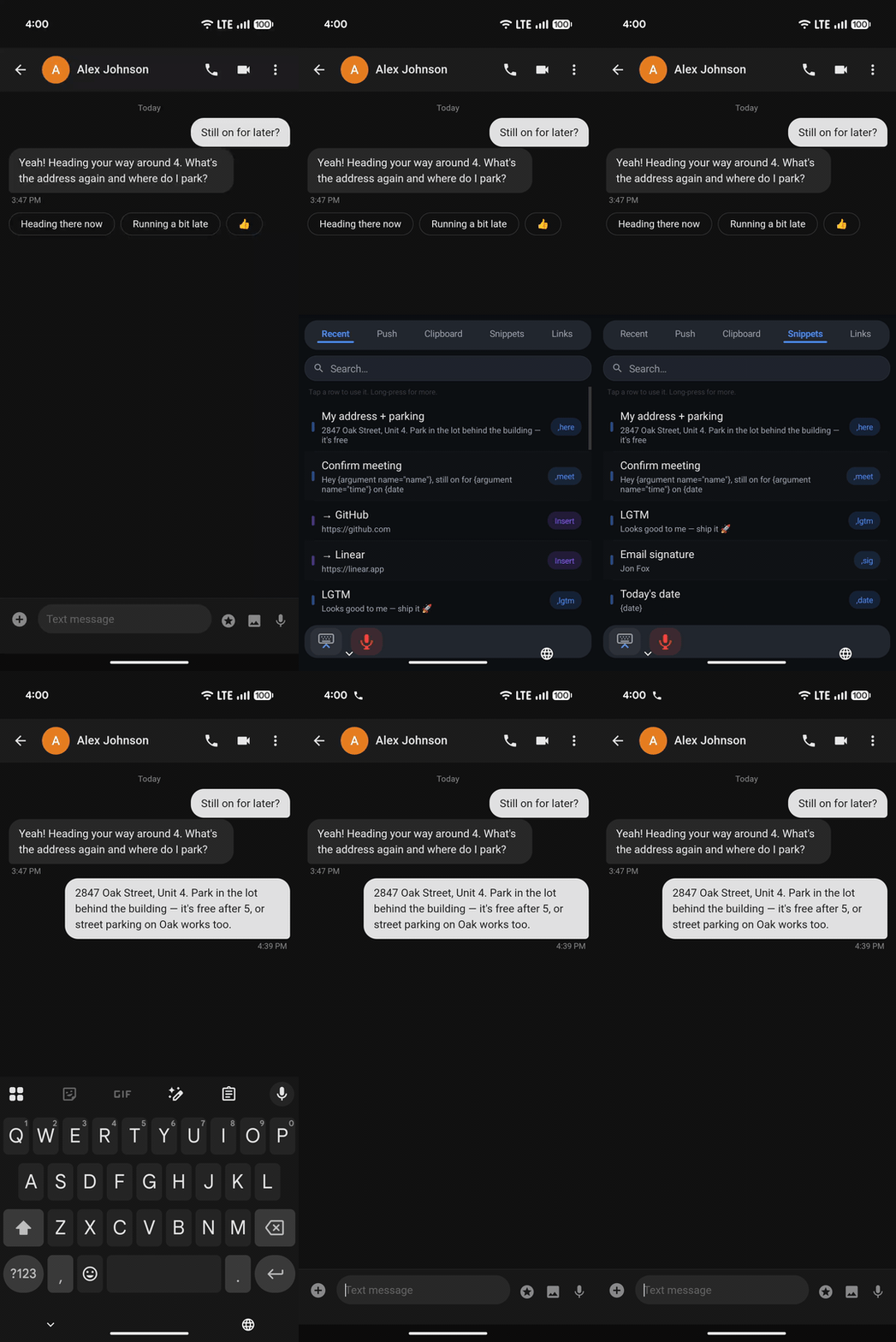
Your snippets are live. Type a trigger anywhere, and Nibit expands it while you're still on Gboard, SwiftKey, or whatever you normally use.
Can't remember a trigger? Switch to the Nibit keyboard and search your snippet library by trigger or expanded text. Both the keyboard and the app are there to bail you out.
Need to tweak something? Open the Nibit app, go to Snippets, tap the snippet, and edit. Changes sync instantly if you're on Cloud Pro. On the free tier, edits stay local until you back up again.
What to do with dynamic placeholders
Basic snippets import no sweat. Snippets with dynamic placeholders like {date}, {clipboard}, or {argument} work the same way on Android as they did on your computer.
Wanna add more placeholders down the line? Find text you type several times a week where one detail changes each time, a customer name, a ticket number, today's date. Swap that variable detail for a placeholder and expand once to make sure it feels right.
Full placeholder reference and syntax lives in the Nibit manual. If you're starting from scratch, check out How to use text snippets on Android and Dynamic Android snippets with placeholders.